

Getting Started with BIS
You’ve decided to create an account on YOW’s BIS page? Here’s how to get started!
Step 1. Import your existing YOW account
Fast and Simple! If you have an account with YOW, contact us to import your current company information and your existing learners to BIS.
- Toll-free: 1-866-688-2845
- Email: info@yowcanada.com
By importing your existing YOW account to BIS, your profile will be set up as an administrator, allowing you to view training reports and manage your users.
Step 2. Log into BIS
From your YOW Canada administration dashboard, you can click the ‘BIS Training’ button to be taken directly to your BIS dashboard.
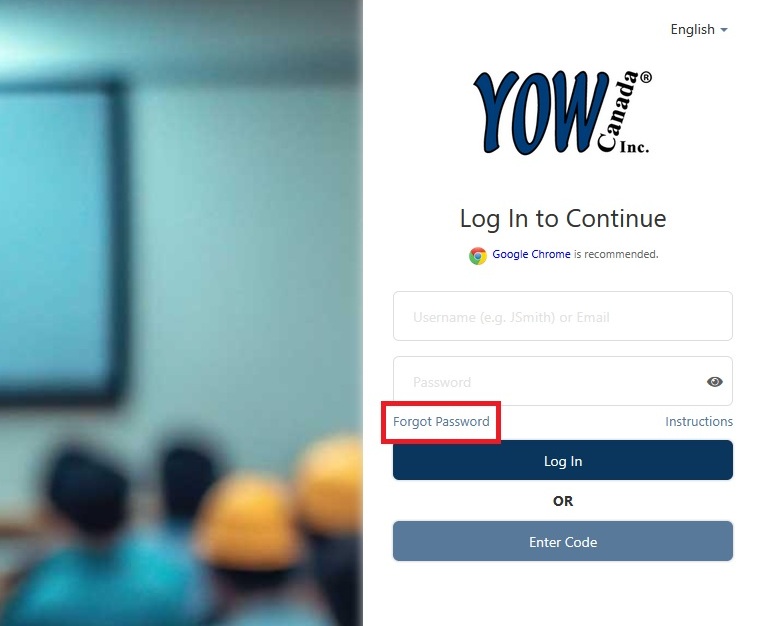
Or, go to: YOW’s BIS Login page
If your account has just been imported, use the forgot password feature to set your password for your account. Once completed, you can log in.
Step 3. Purchase Training
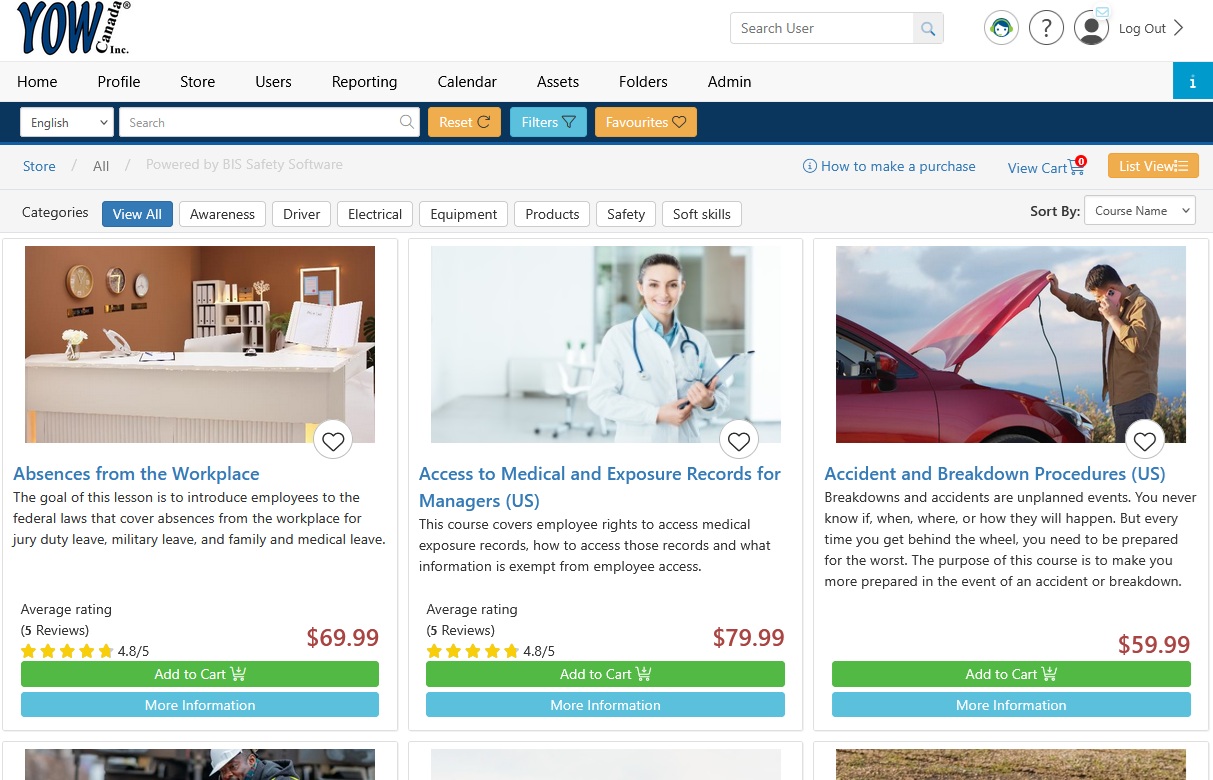
Go to: YOW Canada’s BIS storefront
Search for the courses you would like to purchase for yourself or your trainees and add the courses to your shopping cart.
Once you are ready, follow the checkout instructions.
Step 4. Assign your Courses


- Click ‘Email Instructions’

-
Fill in the email addresses and subject line fields. Separate different email addresses with a comma (,).
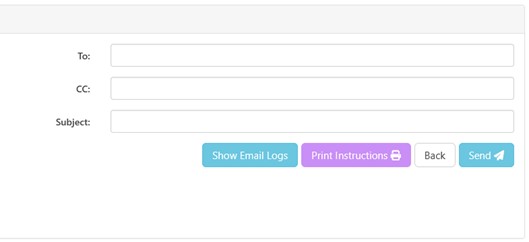
- Optional: you can modify the message which will be sent if desired but we recommend leaving the BIS instructions as is.
-
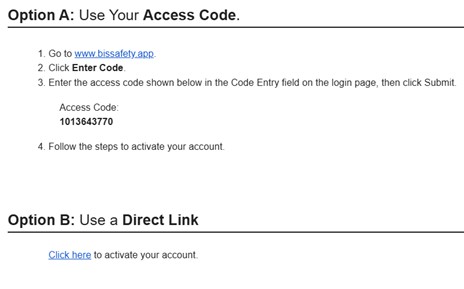
Click ‘Send’ to send the instructions to the desired emails. Users can then follow the instructions in the email to enter the code at www.bissafety.app and then either create their account or to log into their existing account.
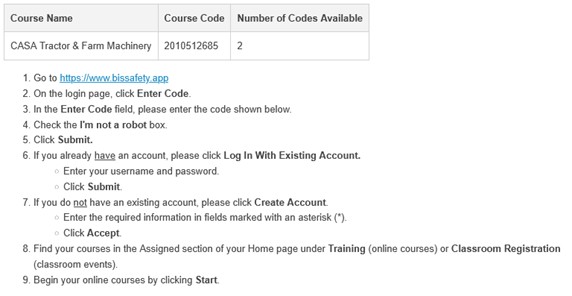
-
On the ‘Assign Training’ page, under ‘Option 2’ section, fill in the field for each user to take the training: first name, last name and their email. (Optional: set company and phone number for the learner)
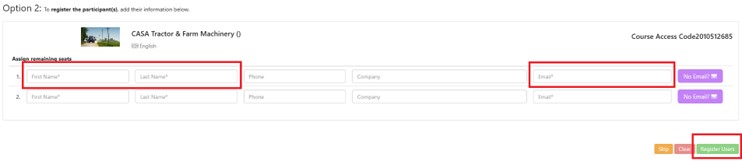
- Click ‘Register Users’ at the bottom of the page
-
The selected users will be emailed the instructions to enter the code and start their training.