

Certificates and Reports
How to view your certificates
1.Log into your BIS Dashboard.
2.From the Home screen/Dashboard you can see all of your completed training.
3.Click on the certificate icon (  ) to open your certificate for the course.
) to open your certificate for the course.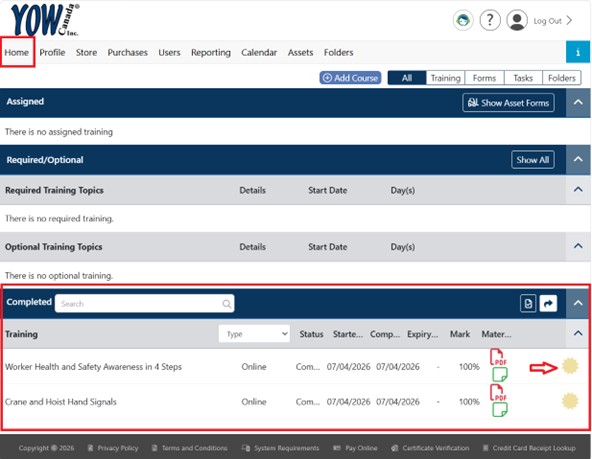
Admin Training Reports – Completed Training by User
The ‘Completed Training by User’ report will list all users under your selected location (if you have sub locations set up, you can select the sublocation to see those users). The list shows a count of each user’s complete, In Progress, and Incomplete courses.
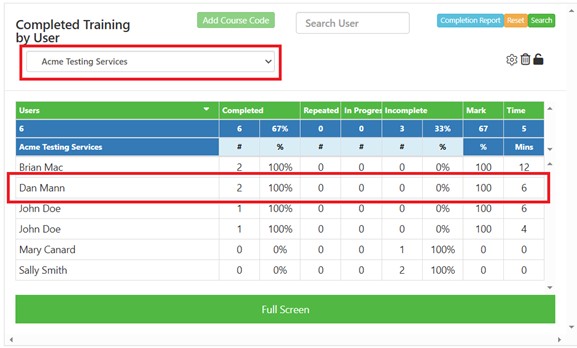
Click on a person’s name to view their list of courses. By default the user’s certified courses are shown. Click the completed/Incomplete’ buttons to switch between course status listed. Click on the ‘Certificate icon’ ( ) to open that user’s certificate.
) to open that user’s certificate.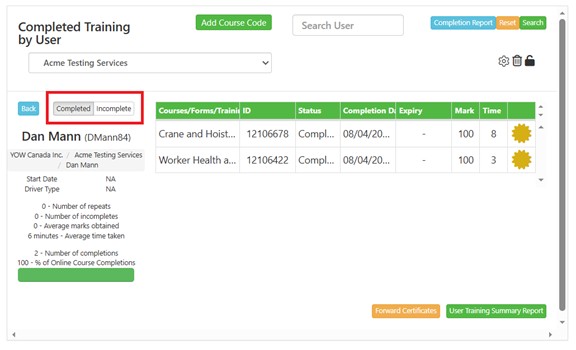
Admin Training Reports – Course Report
The ‘Completed Training By Course’ report lists every course that has been assigned to users in your location. The list gives a count of the number of users who are assigned that course, how many havnt started, are In Progress, or have certified.
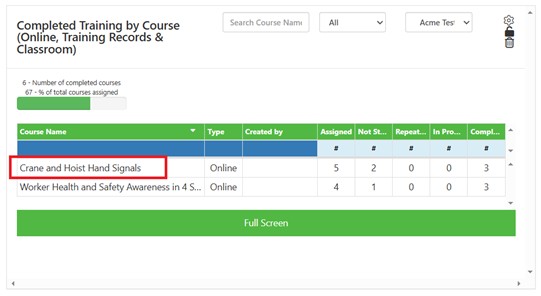
Click on a course title to open the User list for all users assigned to that specific course. Click on the ‘Certificate icon’ ( ) to open that user’s certificate.
) to open that user’s certificate.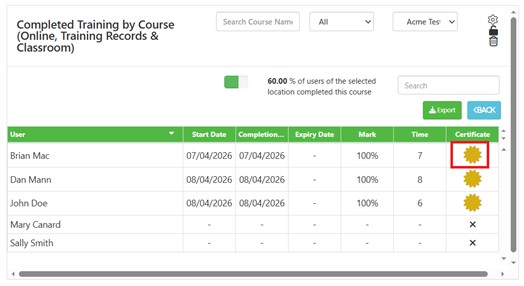
Admin Training Reports – Graphs
The ‘Graphs’ widget gives a pie-chart which you can use to quickly see at a glance now many users have completed their training (green) vs how many have incomplete training assigned (red).
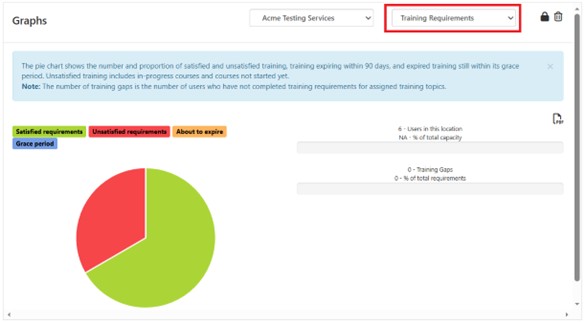
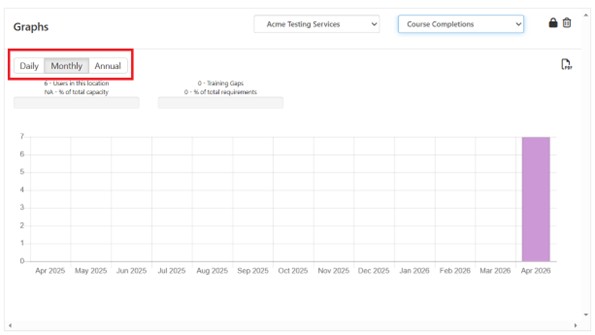
Click on the drops down that says ‘Training Requirements’ and select ‘Course Completions’ to see a bar graph which indicates the number of certifications for the selected period (You can change which period is reported using the buttons in the top let area of the graph).
Editing your Report Dashboard
You can add, remove and resize the report widgets on your report page.
1.Click the ‘Edit Reporting’ button at the bottom of the screen.
2.Several report widget buttons will be show. You can click on a report to add its widget to your report page.

3.Widgets can be re-ordered by clicking and holding on any ‘white space’ (any area that is not a button/text or interactable item) and then dragging the widget to the desired position.
4.Widgets can be resized by placing your cursor in the bottom right corner where your cursor changes to the diagonal arrow:
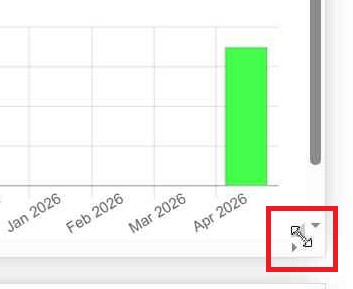
Click and hold and move the mouse to resize the widget.
5.When you are finished editing the widgets, click the ‘save’ button at the bottom of the screen.